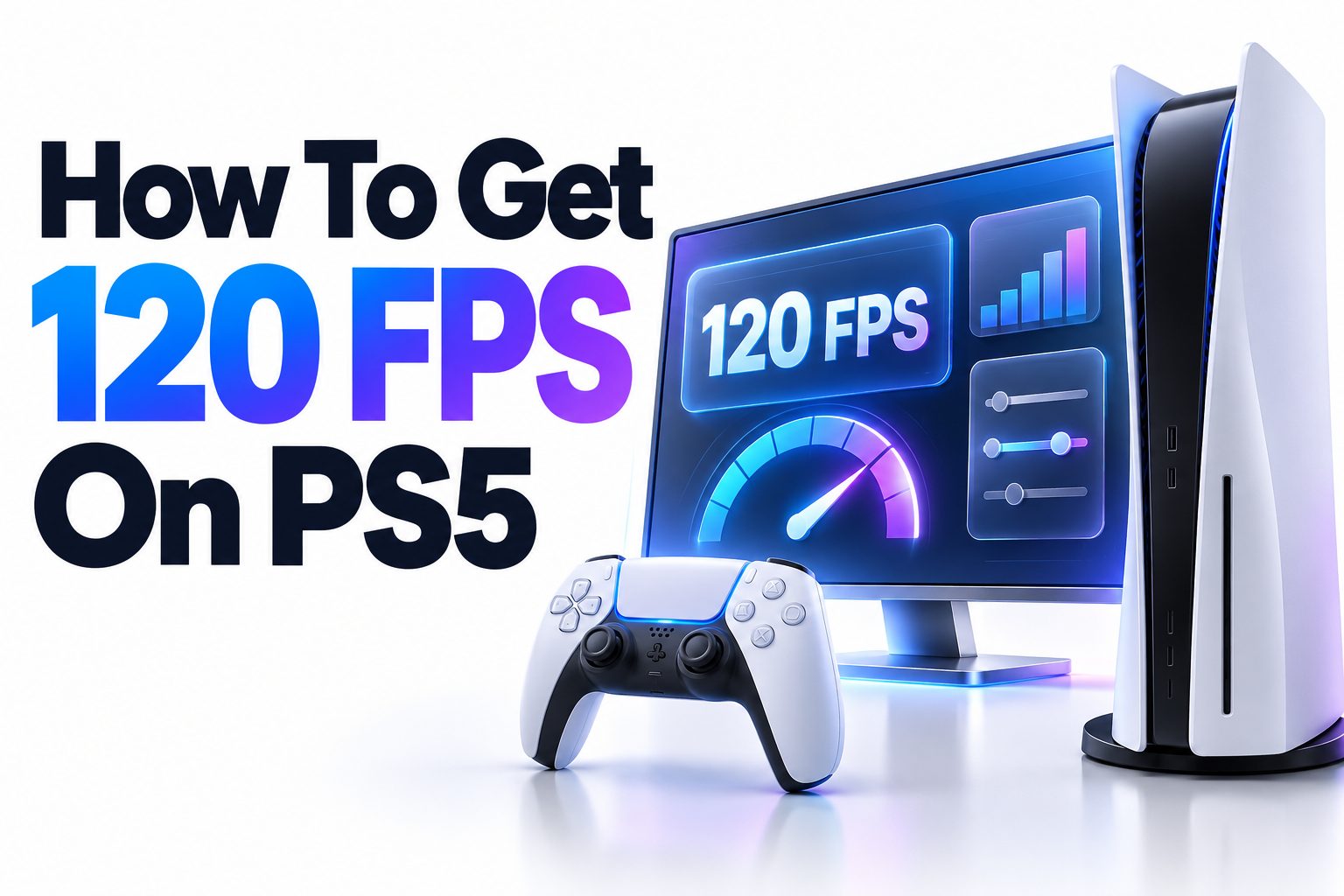
Getting 120 frames per second on a PlayStation 5 requires more than changing one console setting. You need a game that offers a 120 FPS mode, a TV or monitor capable of displaying 120Hz, and an HDMI connection with enough bandwidth for your chosen resolution. Once those pieces are in place, the PS5 can automatically send a 120Hz signal when compatible gameplay begins.
This guide explains how to get 120 FPS on PS5, from checking your display and HDMI port to changing the correct console and in-game settings. You will also learn how to confirm that 120Hz output is active, what to do when the option is missing, and why some games reduce resolution or visual detail at higher frame rates.
The key limitation is worth stating immediately: the PS5 cannot force every game to run at 120 FPS. Support must be built into the game, and performance can still vary during demanding scenes. Your display’s refresh rate and the game’s frame rate are related, but they are not the same thing. The steps below will help you configure the full setup correctly.
PS5 120 FPS Requirements
The PS5 supports video output at up to 120Hz, including 4K at 120Hz with compatible equipment. To benefit from it, your game must include a 120 FPS or high-frame-rate mode. A 120Hz display alone cannot make a 30 FPS or 60 FPS game produce additional frames.
Your television or monitor must also accept a 120Hz signal at the resolution you intend to use. Some screens support 120Hz at 1080p or 1440p but only 60Hz at 4K. Check the manufacturer’s specifications carefully rather than relying on labels such as “motion rate” or “effective refresh rate.”
The basic requirements are:
- A PS5 or PS5 Pro console with current system software
- A game with an official 120 FPS or 120Hz mode
- A television or monitor with a native 120Hz or higher refresh rate
- A suitable HDMI port on the display
- The HDMI cable supplied with the PS5 or another certified Ultra High Speed HDMI cable for 4K at 120Hz
- 120 Hz Output enabled in the PS5 video settings
- Performance Mode or the game’s equivalent high-frame-rate option
A 144Hz gaming monitor can usually receive a 120Hz signal from the PS5, provided it supports 120Hz over HDMI. Support through DisplayPort alone is not enough because the PS5 outputs video through HDMI.
Frame Rate and Refresh Rate Explained
Frames per second describes how many individual images a game renders each second. Refresh rate, measured in hertz, describes how many times the display can update its image each second. A game rendering at 120 FPS needs a 120Hz display to present those frames at their intended rate.
A 120Hz screen can still display a 60 FPS game, but each rendered frame is effectively shown across two refresh cycles. Likewise, selecting a 120Hz output does not guarantee that a game maintains a locked 120 FPS. Complex scenes, effects, and large player counts may cause temporary frame-rate drops.
Higher frame rates can reduce the delay between an input and the next visible frame. At 60 FPS, each frame lasts about 16.7 milliseconds. At 120 FPS, that interval falls to roughly 8.3 milliseconds. The result is smoother motion and potentially faster visual feedback, especially in shooters, racing games, and fighting games.
120Hz Display Compatibility
A display advertised as 4K does not necessarily support 120Hz, while a 120Hz label does not always mean the screen accepts a true 120Hz gaming signal. Some televisions use image processing to simulate smoother motion from a native 60Hz panel. That feature does not provide genuine 120 FPS gameplay.
Look for specifications such as 1920 × 1080 at 120Hz, 2560 × 1440 at 120Hz, or 3840 × 2160 at 120Hz. For 4K 120Hz, HDMI 2.1 support is generally required. Lower resolutions may work at 120Hz through certain HDMI 2.0 implementations, depending on the display.
Use this quick compatibility checklist before changing
□ The display has a native refresh rate of at least 120Hz
□ Its specifications list 120Hz input over HDMI
□ The correct HDMI port supports the desired resolution and refresh rate
□ Enhanced HDMI, Input Signal Plus, or an equivalent setting is enabled
□ Game Mode is available and selected
□ The display firmware is current
□ An appropriate high-bandwidth HDMI cable is connected
□ No incompatible receiver, switch, soundbar, or capture device interrupts the signal
Choosing the Correct HDMI Port and Cable
Many televisions have several HDMI inputs, but only one or two may support 4K at 120Hz. The compatible inputs are often marked “4K 120,” “HDMI 2.1,” “Game,” or with a gaming symbol. The television manual or manufacturer’s product page should identify their exact capabilities.
Connect the console directly to a compatible input during initial setup. An AV receiver, HDMI switch, capture card, or soundbar can limit the signal to 60Hz even when both the PS5 and television support 120Hz. Once direct output works, you can test intermediary equipment separately.
The HDMI cable included with the PS5 is suitable for the console’s high-bandwidth video features. If you need a longer or replacement cable for 4K 120Hz, use a certified Ultra High Speed HDMI cable. A cable advertised vaguely as “4K compatible” may support only 4K at 60Hz.
You do not always need HDMI 2.1 for 120 FPS. Some monitors and televisions accept 1080p or 1440p at 120Hz through HDMI 2.0. HDMI 2.1 becomes especially important when you want 4K resolution, 120Hz, HDR, and other advanced video features together.
Enabling 120 Hz Output on PS5
The PS5 normally detects compatible equipment automatically, but the relevant setting should still be checked. Turn on the display first, choose the correct input, and then start the console. This allows the PS5 to read the display’s supported video modes through the HDMI connection.
Follow these steps:
1. Open Settings from the top-right corner of the PS5 home screen.
2. Select Screen and Video.
3. Open Video Output.
4. Find 120 Hz Output and set it to Automatic.
5. Leave Resolution on Automatic unless you are diagnosing a compatibility problem.
6. Check the Video Output Information screen to see which resolutions, refresh rates, HDR formats, and VRR features the connected display reports.
7. Start a supported game and enable its 120 FPS option if required.
The home screen may continue operating at 60Hz. Many displays switch to 120Hz only after compatible gameplay begins, so checking the television’s information panel from the dashboard can produce a misleading result. Launch the game and enter an active match or gameplay scene before testing the signal.
Setting Performance Mode as the Default
Performance Mode tells supported games that you prefer higher frame rates over maximum image quality. From the PS5 home screen, open Settings, select Saved Data and Game/App Settings, and then choose Game Presets. Set Performance Mode or Resolution Mode to Performance Mode.
This preference does not override every game. Some titles use their own graphics menu, while others interpret the preset only during the first launch. Open the game’s display or graphics settings and look for labels such as 120Hz Mode, High Frame Rate, Performance, Performance Pro, or Favor Frame Rate.
A typical setup sequence looks like this:
1. Enable Automatic under Settings, Screen and Video, Video Output, and 120 Hz Output.
2. Select Performance Mode in Settings, Saved Data and Game/App Settings, and Game Presets.
3. Launch the supported PS5 game.
4. Open the game’s graphics or video menu.
5. Choose its 120 FPS, 120Hz, high-frame-rate, or performance option.
6. Restart the game if it requests a restart.
7. Check the display’s signal information while gameplay is running.
Changing the console preset does not convert unsupported software into a 120 FPS game. It only selects a higher-performance option when the developer has provided one.
Activating the Display’s Gaming Features
Televisions frequently require an input-specific setting before accepting high-bandwidth signals. Depending on the brand, it may be called Enhanced Format, HDMI Enhanced, Input Signal Plus, Deep Color, Ultra HD Deep Color, or Enhanced 4K. Enable it for the HDMI input connected to the PS5.
Select the display’s Game Mode as well. Game Mode reduces image-processing delays by disabling or simplifying features such as motion interpolation, noise reduction, and frame analysis. These processing options may make television content look different, but they can add noticeable input lag during gameplay.
Avoid artificial motion-smoothing settings. Manufacturers use names such as MotionFlow, TruMotion, Auto Motion Plus, or Intelligent Frame Creation. These systems generate intermediate images for video content and are not substitutes for frames rendered by the PS5. They can also introduce artifacts and additional latency.
Useful display settings typically include:
- Game Mode enabled
- The HDMI input placed in its enhanced bandwidth mode
- Motion interpolation disabled
- Overscan disabled or screen size set to full pixel
- Low-latency mode enabled where available
- Firmware updated to the latest stable version
- Variable refresh rate enabled when supported and desired
The exact labels vary, so consult the television or monitor manual if a setting is unclear. A guide to [Internal Link: Best PS5 TV Settings] can also help with brand-specific picture adjustments after the 120Hz signal is working.
Selecting the Right In-Game Graphics Mode
Games commonly offer a choice between visual quality and frame rate. A quality or fidelity mode may prioritize 4K rendering, ray tracing, denser effects, and higher detail at 30 or 60 FPS. A 120 FPS mode usually reduces one or more of those features to give the processor and graphics hardware more time to render each frame.
The exact compromise differs between games. One title might render internally at a lower dynamic resolution and upscale the result, while another reduces shadows, crowd density, reflections, or ray tracing. The output signal may remain 4K even when the game itself is being rendered below native 4K.
Some games offer a 120Hz display mode without targeting 120 FPS continuously. For example, a title may use a 120Hz output container to support a 40 FPS quality mode because 40 divides evenly into 120. That can provide smoother motion and lower latency than 30 FPS, but it is not the same as 120 FPS gameplay.
Review the mode description inside the game before selecting it. When a developer provides separate Performance, Balanced, and 120 FPS modes, Performance may target 60 FPS while the dedicated high-frame-rate mode aims higher. The name alone does not guarantee the target.
Resolution Options at 120Hz
The best resolution depends on the display and the available bandwidth. A compatible HDMI 2.1 television can receive 4K at 120Hz, while an HDMI 2.0 monitor may work at 1080p or 1440p at the same refresh rate. The game’s internal rendering resolution can still be lower than the selected output resolution.
Leaving the PS5 resolution on Automatic is usually the safest choice. If 120Hz does not activate, test 1080p to determine whether the problem involves 4K bandwidth. A successful 1080p 120Hz signal suggests that the game and display support high refresh rates but the cable, HDMI port, or display settings may be limiting 4K 120Hz.
The practical differences can be summarized as follows:
Resolution | Typical connection requirement | Main advantage | Main limitation
1080p at 120Hz | Compatible HDMI input, often HDMI 2.0 or newer | Broad high-refresh compatibility | Less image detail on large 4K screens
1440p at 120Hz | Display must explicitly accept 1440p 120Hz over HDMI | Strong balance of clarity and performance | Not every television supports 1440p input
4K at 120Hz | Usually HDMI 2.1 and an Ultra High Speed cable | Sharp output with high refresh rate | Requires more capable equipment and may still use dynamic internal resolution
You can test 1440p compatibility under Settings, Screen and Video, Video Output, and Test 1440p Output. The console checks supported 60Hz and 120Hz modes. If the display fails the test, use 1080p or 4K based on the modes it accepts.
Confirming That 120Hz Is Active
The most reliable confirmation usually comes from the display rather than visual judgment alone. While a supported game is running in its high-frame-rate mode, open the television or monitor’s signal information panel. It should report a 120Hz or 119Hz input signal, depending on how the device displays refresh-rate data.
The PS5’s Video Output Information page shows the capabilities detected from the connected screen, but it may not provide a live frame-rate counter for the game. Some gaming monitors and televisions include an on-screen refresh-rate display. That number represents the display signal and may fluctuate when VRR is active.
Remember that a 120Hz signal does not prove the game is rendering at a constant 120 FPS. It confirms that the display is refreshing at the appropriate rate. To measure rendered performance precisely, specialized capture and analysis equipment is normally required.
Quick checks for successful activation include:
- The game’s 120 FPS option is selectable
- The display reports 120Hz during gameplay
- Camera movement appears smoother than in the 60 FPS mode
- Controls feel more immediate
- The image may look slightly softer because of reduced rendering resolution
- The television remains in Game Mode
- The signal does not drop to a black screen or revert to 60Hz
Troubleshooting a Missing 120Hz Option
Start by confirming that the game actually supports 120 FPS on PS5. Support can differ between console generations, and a PS4 version running through backward compatibility may not offer the same mode as the native PS5 release. Highlight the game tile, open its options menu, and verify that the PS5 version is installed.
Next, update the PS5 system software, the game, and the display firmware. Developers occasionally add performance modes through patches, while television updates can improve HDMI compatibility. Fully restart the console and display after updates instead of relying only on Rest Mode.
Try these fixes in order:
1. Set 120 Hz Output to Automatic.
2. Select Performance Mode under Game Presets.
3. Enable the game’s own 120 FPS setting.
4. Connect the PS5 directly to the television or monitor.
5. Move the cable to the display’s 120Hz-compatible HDMI port.
6. Enable the display’s enhanced HDMI format for that input.
7. Use the original PS5 cable or a certified Ultra High Speed replacement.
8. Set the PS5 resolution to 1080p temporarily and retest.
9. Disable HDR temporarily to identify a bandwidth or compatibility issue.
10. Restart the console, game, and display.
If 1080p 120Hz works but 4K 120Hz does not, the likely problem is the connection path, port capability, cable bandwidth, or television configuration. If no 120Hz mode works, inspect the display specifications for 120Hz support specifically over HDMI.
Fixing Black Screens, Flickering, and Signal Drops
A brief black screen when a game switches from 60Hz to 120Hz can be normal. The display may need a moment to renegotiate the HDMI signal. Repeated blackouts, flashing, colored artifacts, or lost audio point to an unstable connection or incompatible video setting.
Connect the console directly to the screen and reseat both ends of the HDMI cable. Test the cable supplied with the console, then check that the television’s enhanced input mode is active. Removing receivers, adapters, switches, splitters, and capture devices helps isolate the component restricting the signal.
PS5 includes a Video Transfer Rate setting that can help with certain 4K signal problems. Under Settings, Screen and Video, and Video Output, change Video Transfer Rate from Automatic to -1. If the issue continues, test -2. These settings reduce color signal bandwidth and may improve stability, though they can affect chroma quality.
Do and Don’t
Do:
- Test the console with a direct HDMI connection
- Use the PS5’s included cable when diagnosing problems
- Verify the exact resolution and refresh rate reported by the display
- Update the console, game, and display firmware
- Test a lower resolution to isolate bandwidth limitations
Don’t:
- Assume every HDMI port has identical capabilities
- Use motion smoothing as a substitute for genuine 120Hz output
- Expect unsupported games to run at 120 FPS
- Replace cables before checking the display’s enhanced HDMI setting
- Judge activation only from the PS5 home screen
VRR, ALLM, and Their Role in 120 FPS Gaming
Variable Refresh Rate allows a compatible display to synchronize its refresh timing with the console’s changing frame output. This can reduce visible tearing and uneven motion when a game falls below its target. VRR does not increase the game’s maximum frame rate, but it can make fluctuations within the supported range look smoother.
On PS5, VRR requires compatible equipment and is generally associated with HDMI 2.1 VRR support. Open Settings, Screen and Video, and Video Output to enable VRR. The option to apply VRR to unsupported games may help in some cases, but it can also produce unwanted behavior, so disable it if a particular title develops visual problems.
Auto Low Latency Mode, or ALLM, tells a compatible television to use a low-latency picture mode during gameplay. Like VRR, it does not create extra frames. Its purpose is to reduce display processing delay, helping the responsiveness of 120 FPS gameplay reach the screen without unnecessary television-side latency.
These features have distinct jobs:
- 120 FPS controls how many frames the game attempts to render
- 120Hz controls how often the display can refresh
- VRR synchronizes refresh timing with variable frame delivery
- ALLM activates a low-latency display mode
- Game Mode reduces image processing that can delay inputs
Common Mistakes That Prevent 120 FPS
One frequent mistake is buying a monitor based on its maximum refresh rate without checking its HDMI capabilities. A monitor may advertise 144Hz or 165Hz but reach that rate only through DisplayPort. Because PS5 uses HDMI, the monitor must support at least 120Hz through its HDMI input at a compatible resolution.
Another is enabling Performance Mode but overlooking the game’s graphics menu. Console presets express a preference, not an absolute command. Many titles still require their 120Hz mode to be enabled manually, and some ask for a restart before the new renderer becomes active.
Other common errors include:
- Running the PS4 edition instead of the PS5 edition
- Using a 60Hz HDMI input on an otherwise compatible television
- Leaving enhanced HDMI bandwidth disabled
- Routing the signal through a 60Hz soundbar or receiver
- Confusing a 120Hz output signal with a guaranteed locked 120 FPS
- Assuming HDMI 2.1 branding means every port supports every HDMI 2.1 feature
- Checking refresh rate only on the home screen
- Prioritizing fidelity or ray-tracing mode in the game
- Using an older or damaged cable for 4K 120Hz
- Treating television motion interpolation as genuine high-frame-rate gameplay
A related [Internal Link: PS5 Performance Mode vs Resolution Mode] article can help readers decide which visual tradeoffs make sense for different types of games.
When 60 FPS May Be the Better Choice
A 120 FPS mode is most valuable in games where rapid movement, aiming, reaction time, and input response matter. Competitive shooters, racing games, rhythm games, and fighting games often benefit noticeably. The improvement is easier to appreciate when you sit close to a monitor or regularly play fast-paced multiplayer titles.
For cinematic adventures, slower role-playing games, and visually dense single-player experiences, a stable 60 FPS mode may offer a better balance. It can preserve higher resolution, richer effects, improved lighting, or ray tracing while remaining much smoother than 30 FPS.
The decision also depends on the stability of the high-frame-rate mode. An inconsistent mode that frequently drops far below its target may feel less polished than a locked 60 FPS presentation. VRR can reduce the visible impact of fluctuations, but it cannot repair severe performance drops or eliminate every frame-pacing issue.
Try both options in an active gameplay area rather than comparing static menus. Spend several minutes moving the camera, entering combat, and visiting demanding environments. Choose the mode that delivers the balance of responsiveness and image quality you actually notice from your normal viewing distance.
Conclusion
Getting a genuine 120 FPS experience requires the PS5, the game, the display, and the HDMI connection to support the same high-refresh mode. Begin by confirming that your television or monitor accepts 120Hz over HDMI and that the game includes a dedicated high-frame-rate option. Then enable Automatic 120 Hz Output, select Performance Mode, and activate the relevant setting inside the game.
For 4K at 120Hz, connect the PS5 to the correct high-bandwidth HDMI port with the included cable or another certified Ultra High Speed cable. Direct connections are best during setup because receivers, switches, soundbars, and capture devices can introduce a 60Hz limitation. Use the display’s signal information screen during gameplay to verify the result.
The practical answer to how to get 120 fps on ps5 is therefore a combination of compatible hardware and correct settings, not a hidden performance switch. If the mode remains unavailable, test 1080p, verify the installed game version, enable enhanced HDMI format, and remove intermediary devices. Once the complete signal chain is configured, supported games can deliver smoother motion and lower visible input latency.
Frequently Asked Questions
Can every PS5 game run at 120 FPS?
No. A game must include developer-supported 120 FPS or high-frame-rate functionality. The PS5 cannot force a 30 FPS or 60 FPS title to render at 120 FPS simply by enabling 120Hz output.
Do I need HDMI 2.1 for 120 FPS on PS5?
Not always. Some HDMI 2.0 displays support 120Hz at 1080p or 1440p. HDMI 2.1 is generally needed for 4K at 120Hz and provides better support for high-bandwidth features such as VRR.
Why does my PS5 still show 60Hz?
The dashboard or unsupported software may remain at 60Hz. Launch a compatible game, enable its high-frame-rate mode, and check the display’s signal panel during gameplay. Also confirm that 120 Hz Output is set to Automatic.
Can a 144Hz monitor work with PS5 at 120Hz?
Yes, provided the monitor accepts a 120Hz signal over HDMI at a PS5-supported resolution. Some high-refresh monitors reach their advertised maximum only through DisplayPort, so verify the HDMI specifications before purchasing or troubleshooting.
Does Performance Mode automatically enable 120 FPS?
Not in every game. Performance Mode communicates your frame-rate preference, but many titles require a separate 120Hz or high-frame-rate option in their graphics settings. The game must also include official support for that mode.