A low frame rate can make Roblox feel sluggish, cause animations to stutter, and make precise movement harder than it should be. Fortunately, Roblox includes built-in tools that let you see how smoothly an experience is running without installing an FPS counter.
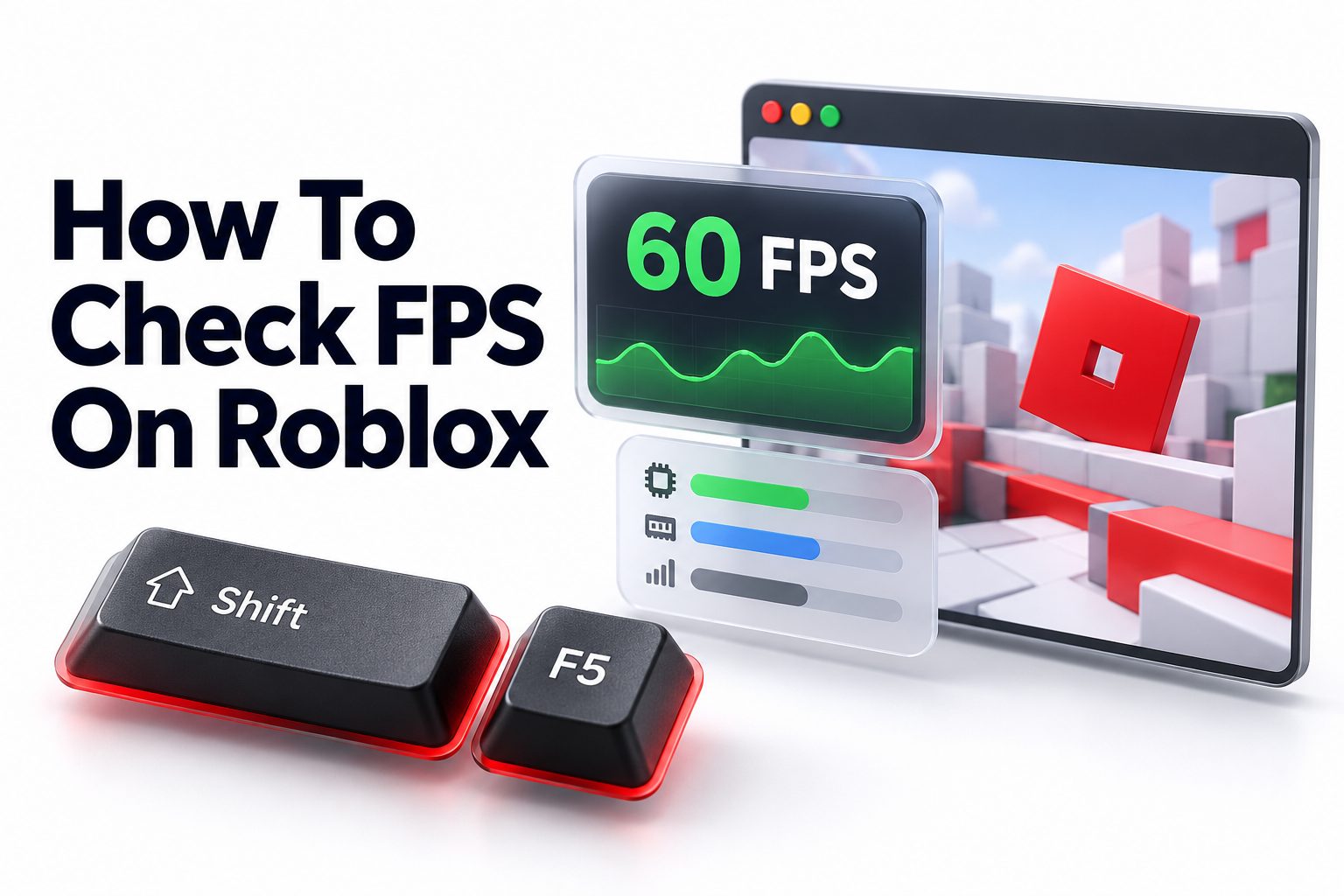
The quickest answer to how to check FPS on Roblox is to join an experience and press Shift + F5. This opens a performance summary that displays your current frames per second alongside other diagnostic information. Press the shortcut again to cycle through available statistics or close the overlay. Depending on your keyboard, you may need to include the Fn key.
Roblox also offers a Performance Stats option in its settings, which is especially useful when keyboard shortcuts are unavailable. This article explains both methods, covers Windows, Mac, mobile, console, and Roblox Studio, and shows you how to interpret the results. You will also learn why FPS drops occur, how frame rate differs from ping, and which practical adjustments can produce more stable performance.
Checking FPS With the Roblox Keyboard Shortcut
The built-in debug statistics overlay is the fastest way to display your Roblox frame rate. It works inside an active experience, so launch Roblox and join a game before using the shortcut. Press Shift + F5, and a diagnostic panel should appear on the screen.
Look for the number labeled FPS. It changes while you play because rendering demand varies from one scene to another. A quiet room may produce a higher reading than a crowded area containing numerous players, particle effects, shadows, and detailed models.
On some current Roblox versions, the full summary shortcut may require Ctrl + Shift + F5 on Windows or Command + Shift + F5 on macOS. Roblox has several debug overlays, and shortcut behavior can differ by client version and keyboard configuration. If Shift + F5 alone does nothing, try the expanded combination.
Laptop keyboards often assign brightness, volume, or another system function to the F5 key. In that case, hold Fn while entering the shortcut. The complete combination may be Fn + Shift + F5 or Fn + Ctrl + Shift + F5, depending on the laptop and Roblox client.
Using Performance Stats From the Settings Menu
Roblox also provides a menu-based Performance Stats option. This is a convenient alternative when a function-key shortcut is difficult to enter or has been intercepted by the operating system. The overlay shows FPS together with useful performance information such as memory use and network latency.
To enable it, join an experience, open the Roblox menu, and select Settings. Find Performance Stats and switch it to On. Return to the game, and the statistics should remain visible while you move between different areas of that experience.
Menu labels and availability can vary between devices and Roblox releases. If Performance Stats does not appear, use the keyboard overlay on a computer. On mobile or console, the absence of the option usually means that the current client does not expose a built-in live FPS counter.
Quick Method Checklist
1. Open Roblox and join an experience.
2. Wait until the game finishes loading.
3. Press Shift + F5.
4. If nothing appears, try Ctrl + Shift + F5 on Windows or Command + Shift + F5 on Mac.
5. Add the Fn key if your keyboard uses F5 for a system control.
6. Find the FPS value in the performance summary.
7. Alternatively, open Menu, select Settings, and turn on Performance Stats.
8. Play for several minutes and watch the number in both simple and demanding areas.
Reading the FPS Counter Correctly
FPS stands for frames per second. Each frame is a new image produced by your device and displayed during gameplay. At 60 FPS, Roblox renders approximately 60 images every second. At 30 FPS, it produces only half as many, so camera movement and animation appear less fluid.
A single reading does not tell the full story. Frame rate naturally changes as the workload changes. Watch the counter while standing still, turning the camera, entering a busy area, and participating in combat. Consistent results matter more than a brief peak reached in an empty location.
Frame pacing is also important. A game holding 60 FPS most of the time can still feel jerky if it repeatedly drops to 25 FPS for a moment. These sudden changes interrupt motion even when the average appears acceptable. Look for the lowest recurring reading, not just the highest number.
For a fair test, allow the experience to load completely before recording results. Roblox may compile assets, load textures, or stream parts of the map after you join. The first minute can therefore produce lower or less stable readings than the rest of the session.
Common Roblox FPS Ranges
The following ranges are practical reference points rather than strict guarantees. Different experiences place very different demands on hardware, and some are intentionally limited to a particular frame rate.
FPS range | Typical experience
Below 20 FPS | Noticeable stuttering, delayed visual feedback, and difficult camera control
20–29 FPS | Playable in slower experiences, but movement often feels uneven
30–44 FPS | Generally playable, with visible limitations during fast movement
45–59 FPS | Fairly smooth for most Roblox experiences
60 FPS | Smooth performance and the standard target for many devices
Above 60 FPS | Smoother motion on a high-refresh-rate display when supported
120–240 FPS | Very fluid output requiring capable hardware, the appropriate Roblox setting, and a compatible monitor
A high counter does not guarantee that every aspect of a game will feel responsive. Network delay, server performance, input devices, and display settings can each affect the result. FPS specifically measures how frequently your device creates visual frames.
Checking Roblox FPS on Windows
Windows provides the broadest access to Roblox performance tools. The in-game shortcut and Performance Stats setting are the best starting points because they report the frame rate from Roblox itself. They also avoid the configuration problems associated with third-party overlays.
Roblox includes a Maximum Frame Rate setting on supported Windows clients. Open the in-game menu, go to Settings, and look for Maximum Frame Rate. Available limits may include values such as 60, 120, 144, and 240 FPS. Raising this limit does not guarantee that the computer can reach it.
Choose a limit that suits your display and hardware. Setting 240 FPS on a 60 Hz monitor provides limited visible benefit and can make the processor or graphics card work harder. A stable frame rate near the monitor’s refresh rate is generally more useful than an unstable maximum.
Windows users can also compare the Roblox reading with an established graphics-driver or gaming overlay. NVIDIA, AMD, Xbox Game Bar, and other utilities may display frame rate when properly configured. These tools are alternatives, not requirements, and their overlays may occasionally fail to detect Roblox.
Checking Roblox FPS on Mac
On a Mac, start by joining an experience and trying Shift + F5. If macOS treats the F5 key as a hardware function, add Fn. Some Roblox debug commands use Command rather than Ctrl, so Command + Shift + F5 is another useful combination to test.
The Settings menu may also include Performance Stats, depending on the Roblox client version. Turn it on while inside an experience and check the displayed FPS after the scene has loaded. Keep Roblox as the active application when entering shortcuts, since another focused window will receive the keys instead.
Higher frame-rate settings have historically varied between Windows and macOS releases. Do not assume that a setting described in an older Windows tutorial will appear on a Mac. The built-in counter can still report actual performance even when the client offers fewer frame-rate limit choices.
If Roblox appears capped despite a high-refresh-rate display, confirm that macOS is using the desired refresh rate under display settings. The game’s output, the display refresh rate, and any available Roblox frame cap are separate controls that must all support the intended result.
Windows and Mac Shortcut Comparison
Platform | First shortcut to try | Alternative combination | Common issue
Windows desktop | Shift + F5 | Ctrl + Shift + F5 | Another application captures the shortcut
Windows laptop | Shift + F5 | Fn + Shift + F5 or Fn + Ctrl + Shift + F5 | F5 controls brightness or another system feature
Mac desktop | Shift + F5 | Command + Shift + F5 | Roblox must be the active application
MacBook | Fn + Shift + F5 | Fn + Command + Shift + F5 | Function keys use macOS controls by default
Checking FPS on Mobile Devices and Consoles
Roblox on Android and iPhone does not provide function keys, so the keyboard shortcut is not practical during normal touchscreen play. Open the Roblox menu inside an experience, select Settings, and look for Performance Stats. If the option is present, enable it and return to the game.
Not every mobile client or experience exposes a readable live FPS figure. When the option is absent, there may be no native player-facing FPS counter available on that device. Avoid downloading unknown “FPS booster” apps that request unusual permissions or promise to modify Roblox.
Some Android developer tools and manufacturer gaming dashboards can estimate frame rate. Their availability and accuracy vary widely, and they may require advanced setup. Screen recording is not a reliable substitute because the recording frame rate may differ from the rate at which Roblox renders the game.
Xbox and PlayStation versions of Roblox generally offer fewer diagnostic controls than the desktop client. Check the in-game settings for Performance Stats, but expect it to be unavailable on some console builds. A television’s refresh-rate display usually reports the video signal, not necessarily Roblox’s true rendered FPS.
Practical Mobile Performance Test
When no counter is available, use a repeatable visual test instead of guessing from a single moment:
- Restart Roblox and close unnecessary background apps.
- Join the same experience and use the same graphics setting each time.
- Wait until the map and nearby textures finish loading.
- Follow the same route for two or three minutes.
- Turn the camera steadily in both simple and crowded locations.
- Watch for uneven motion, delayed touch response, and repeated pauses.
- Repeat the test after lowering graphics quality by two or three levels.
- Let the device cool before retesting if it has become hot.
This process does not produce an exact FPS number, but it can reveal whether a settings change creates a meaningful improvement. Consistent testing conditions make the comparison much more useful.
FPS Versus Ping in Roblox
FPS and ping describe different performance problems. FPS measures how quickly your device renders images. Ping measures how long network data takes to travel between your client and the game server, usually in milliseconds. One can be excellent while the other is poor.
Low FPS makes camera motion and animation look choppy. High ping is more likely to cause delayed actions, players jumping between positions, late hit registration, or objects responding after a pause. Performance Stats can show both values, helping you identify which side of the experience needs attention.
As a general reference, lower ping is better. Results under about 50 milliseconds often feel responsive, while values above 100 milliseconds can introduce noticeable delay. The exact effect depends on the game. Competitive experiences expose latency more clearly than casual building or role-playing games.
A wired connection or stronger Wi-Fi may improve ping, but it will not normally fix low FPS caused by graphics load. Lowering visual quality can improve frame rate, but it cannot repair an overloaded or distant server. Diagnose the measurement that matches the symptom.
Testing FPS in Roblox Studio
Creators can view FPS while testing an experience in Roblox Studio, but Studio introduces its own processing overhead. It may run editing tools, the test server, and the client on the same machine. As a result, Studio performance is not always identical to the published Roblox client.
During a playtest, use the available debug statistics or open the Window menu, choose Performance, and enable Stats. The counter can help identify scenes that become expensive when many objects, lights, particles, scripts, or user interface elements are active.
For the most realistic player result, publish or privately test the experience in the standard Roblox client and compare the readings. Studio is excellent for investigation, while the client is usually better for measuring what a player will experience on the same hardware.
Creators needing deeper analysis can use the MicroProfiler, Developer Console, and Creator Dashboard. The MicroProfiler breaks down frame time, while the dashboard summarizes client performance across actual users. A general player only needs the simpler FPS overlay.
Useful Metrics for Creators
- Frame time: At 60 FPS, each frame has roughly 16.67 milliseconds to complete. Longer frames can cause the rate to fall below 60.
- CPU time: Heavy scripts, physics calculations, and frequent object updates can increase processor workload.
- GPU time: Detailed geometry, shadows, lighting, transparency, and post-processing can place greater demand on the graphics hardware.
- Memory: Excessive memory use can produce stuttering or crashes, particularly on lower-end mobile devices.
- Network traffic: Large or frequent updates can create delays even when local rendering remains smooth.
- Device category: A scene that performs well on a gaming PC may struggle on an entry-level phone.
Why the Roblox FPS Counter Does Not Appear
A missing overlay is usually caused by the keyboard, shortcut handling, or device support rather than a broken game. First, confirm that you have joined an experience. Shortcuts may behave differently on the Roblox home screen, in a browser window, or while typing into another application.
Click inside the game to restore focus, then try the shortcut again. On laptops, test it with Fn. On Mac, try the Command variation. Also close overlay utilities that may capture the same key combination before Roblox receives it.
Roblox Studio creates another source of confusion. Shift + F5 can stop an active Studio playtest, so it may not behave like the shortcut in the regular Roblox client. Use Studio’s Performance controls or test through the player application when you need an uncontested reading.
If the menu option and every appropriate shortcut are unavailable, update Roblox and restart the device. A current client can resolve interface or input issues. Reinstalling should be a later troubleshooting step because most missing-counter problems come from shortcut behavior rather than damaged files.
Common FPS Checking Mistakes
- Testing while the map is still loading and treating the initial dip as normal gameplay performance
- Looking only at the highest FPS value instead of watching recurring lows and sudden drops
- Confusing ping with FPS and changing network settings for a graphics problem
- Setting a very high frame cap without checking the monitor’s refresh rate
- Comparing two games that have completely different graphics and scripting demands
- Running a screen recorder, browser, and multiple overlays during one test but not the other
- Assuming a television’s 120 Hz signal means Roblox is rendering at 120 FPS
- Installing untrusted unlockers when Roblox already offers official frame-rate settings on supported clients
Improving Low FPS After Measuring It
Begin with Roblox’s Graphics Mode setting. Open the in-game menu, select Settings, change Graphics Mode to Manual, and lower Graphics Quality gradually. Dropping one or two levels at a time makes it easier to find a balance between clarity and stable performance.
Close demanding background programs, particularly browsers with many tabs, video editors, recording tools, and other games. On a laptop, connect the charger and select an appropriate performance power mode. Battery-saving settings often reduce processor and graphics performance to extend runtime.
Heat can also reduce FPS. Phones and laptops may throttle their components after a long session to control temperature. Remove airflow obstructions, avoid playing on soft bedding, and allow an overheated mobile device to cool. Do not place electronics in a refrigerator or use moisture-producing cooling methods.
Update the operating system and graphics driver through trusted sources when performance problems affect several games. If only one Roblox experience runs poorly, its design may be the main constraint. Try another experience before assuming the computer or phone is at fault.
For more device-focused adjustments, see [Internal Link: How to Reduce Lag in Roblox]. Players comparing hardware and connection symptoms may also find [Internal Link: Roblox System Requirements] useful when deciding whether an upgrade would address the actual bottleneck.
Do and Don’t List for Better Results
Do:
- Test the same location with the same graphics quality.
- Record typical FPS and recurring lows.
- Compare performance before and after one change at a time.
- Use Roblox’s official frame-rate and statistics options where available.
- Test long enough to reveal heat-related slowdowns.
Don’t:
- Judge performance from a brief peak in an empty scene.
- Assume higher FPS will fix network lag.
- Increase the frame cap beyond what the hardware can sustain.
- Download unfamiliar executables advertised as mandatory FPS tools.
- Compare Studio results directly with the player client without accounting for Studio overhead.
Choosing an Appropriate Frame-Rate Target
A stable 60 FPS is a sensible target for most Roblox players. It provides smooth motion on a standard 60 Hz monitor without demanding the extra workload required for much higher output. A consistent 45 or 60 FPS often feels better than a rate that swings constantly between 70 and 140.
Players using 120 Hz, 144 Hz, or faster displays may benefit from a higher maximum frame rate on supported Windows systems. The improvement is clearest during fast camera movement and precision gameplay. The computer must still render those frames consistently for the higher setting to be worthwhile.
Do not select a target based solely on the largest available number. Higher frame rates can increase power consumption, fan noise, and heat. On portable devices, that extra load may eventually cause thermal throttling, leaving performance less stable during a long session.
The best target is one your device can maintain in demanding parts of the experiences you actually play. Run the counter for several minutes, note the recurring low points, and choose a limit near a sustainable level rather than a momentary peak.
Quick Target Recommendations
- 30 FPS: Acceptable for slower gameplay on entry-level or older devices
- 45 FPS: A useful compromise when 60 FPS cannot remain stable
- 60 FPS: The preferred general target for standard displays
- 120 FPS: Suitable for capable PCs paired with a 120 Hz or faster monitor
- 144 FPS: A natural match for many gaming monitors when hardware can sustain it
- 240 FPS: Best reserved for high-performance systems and compatible displays
Conclusion
Checking Roblox frame rate takes only a few seconds once you know where the controls are. Join an experience and start with Shift + F5. If that does not display the performance summary, try the Ctrl or Command variation and include Fn on keyboards that assign another function to F5. The Performance Stats setting provides a menu-based alternative on supported clients.
When learning how to check FPS on Roblox, focus on sustained performance instead of a single high reading. Test busy and quiet areas, wait for the map to load, and watch for recurring drops. Remember that FPS measures rendering smoothness, while ping measures network delay; each requires different fixes.
A stable 60 FPS is a practical target for most players, although capable Windows PCs and high-refresh-rate monitors can benefit from higher limits. If performance is low, reduce graphics quality, close demanding background software, check power and temperature conditions, and compare multiple Roblox experiences. The built-in tools are normally all you need, so there is little reason to trust unknown FPS programs or unlockers.
Frequently Asked Questions
Can Roblox show FPS without extra software?
Yes. Press Shift + F5 while playing to open Roblox’s built-in performance summary. You can also enable Performance Stats from the in-game Settings menu when that option is available on your device and client version.
Why does Shift + F5 not show my FPS?
Your keyboard may assign a system action to F5, or Roblox may not have window focus. Try adding Fn, Ctrl, or Command as appropriate. In Roblox Studio, Shift + F5 may stop the playtest instead.
Is 60 FPS good for Roblox?
Yes. A stable 60 FPS provides smooth gameplay for most Roblox experiences and matches a standard 60 Hz display. Higher values are most useful when both your hardware and monitor support a faster, consistently maintained refresh rate.
Can I see FPS on Roblox mobile?
Some mobile Roblox versions offer Performance Stats in the in-game Settings menu, but availability varies. If the option is missing, that client may not provide a native live FPS counter accessible to ordinary players.
Why is my Roblox FPS low but my ping is good?
FPS and ping measure separate systems. Good ping means the network connection is responding quickly, while low FPS points to rendering load, device limitations, heat, power settings, background programs, or an especially demanding Roblox experience.